Intro to DCU Linux (GUI)
GUI notes
Last time I looked, the DCU lab machines' GUI was
GNOME on Ubuntu,
approximately as follows.
This may change over time.
We will not dwell on the GUI anyway. GUIs are easy to use.
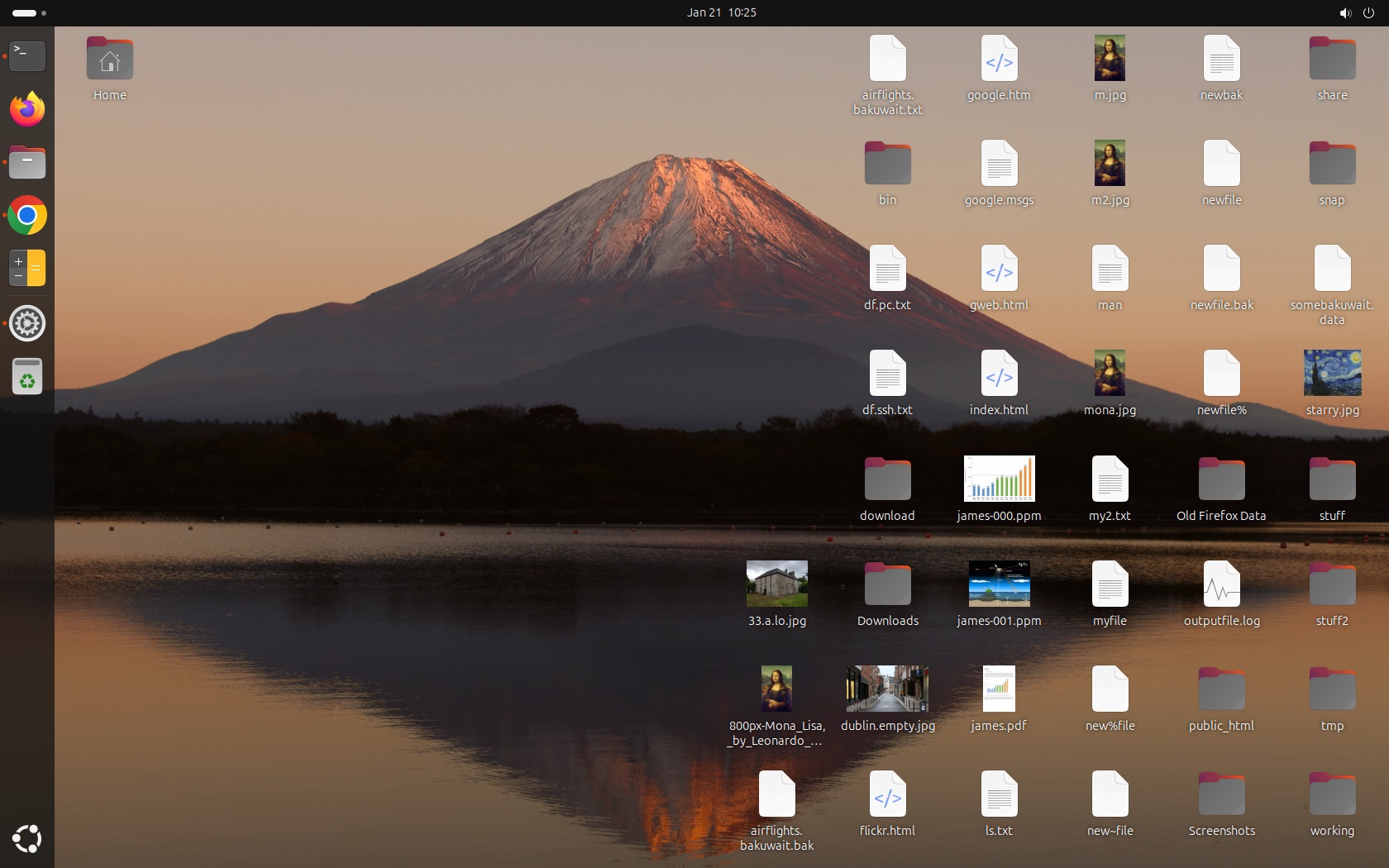
GNOME on Ubuntu on the DCU lab PCs.
- The
GUI
used is
GNOME.
- After GNOME 3,
GNOME uses
numbering 40, 41, ...
- There are many different GUIs.
What you see in the GUI here may not be the same on other Linux/Unix.
- LHS sidebar with "Dash" (favourite applications)
- Windows key (or Search icon in top LHS) to get:
- Search box
- Currently running applications
- For any application - Right click - Pin to Dash
- Dash - Right click - Unpin
- Some good ones to pin:
- Files (file manager)
- Settings
- Trash
- Text Editor
- Terminal (command line)
- (your choice of browser)
- Icon at bottom LHS - All applications
- Keyboard shortcuts
- Keyboard shortcuts
on different OSes and GUIs
- Alt-Tab - switch between applications
- Windows key + L - lock
- Show desktop:
- Ctrl-Alt-D
(actually toggle raise/lower all windows)
- You can define your own shortcuts:
Settings - Keyboard - Shortcuts - Navigation
- Top RHS
- Power
- Lock - Swipe up to unlock (on normal login)
Installations may vary.
- GNOME Text Editor
- New default for GNOME
- gnome-text-editor file &
- launch any windowed app from command-line
- use "&" to detach app
or else command-line hangs until app exits
- run editor with new filename - if doesn't exist, editor creates it
- gedit
- Old default for GNOME
- gedit file &
- saves backup files: file~
- has syntax highlighting
- "gedit" menu in top bar - Preferences
- run editor with new filename - if doesn't exist, editor creates it
- Emacs
- Right-click on file - open with editor
- touch file - make new file
More GUI
- Files (file manager)
- LHS top menu - Show Hidden Files
- Ctrl-L - edit address line directly
- More applications
- Take Screenshot
You can set background image in GNOME using a command.
i.e. A program can set it.
gsettings set org.gnome.desktop.background picture-uri "file://$file"
Notes:
- $file
needs to be the absolute path of the file.